Saving this for future reference
To remove a keyboard under Windows 10 is done this way :
Method 1 : Settings
- Select the Start button
- Go to Settings > Time & Language > Region & language
- Under Languages, click your language
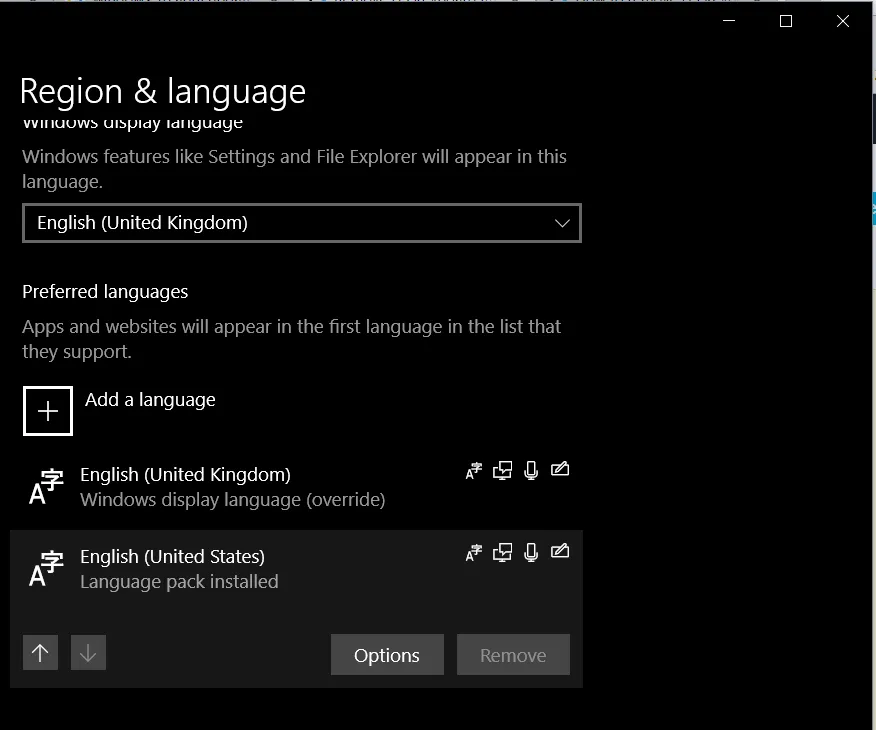
- Click Options
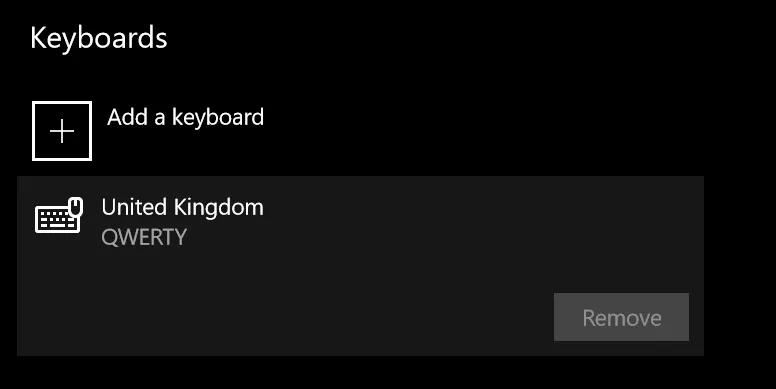
- Under Keyboards click your keyboard
- Click Remove
Method 2 : Preloaded
- Use regedit to navigate to following registry keys, where you will find there the list of keyboards that are preloaded at boot.
HKEY_USERS\.DEFAULT\Keyboard Layout\PreloadHKEY_CURRENT_USER\Keyboard Layout\PreloadHKEY_USERS\.DEFAULT\Control Panel\International\User ProfileHKEY_USERS\.DEFAULT\Control Panel\International\User Profile System Backup
- Find the keyboard identifier among the list of Keyboard Identifiers
- Delete the key.
$LangList = Get-WinUserLanguageList
$MarkedLang = $LangList | where LanguageTag -eq "<languagecode>"
$LangList.Remove($MarkedLang)